Pluto TV provides access to live television channels and a catalog of movies and series on demand, all without a paid subscription. The service works on Samsung Smart TVs equipped with the Tizen system, but the app does not always appear in the app store depending on the model or region. Understanding these limitations before starting the installation can prevent several disappointments.
Tizen, region, and catalog: why Pluto TV remains invisible on certain Samsung TVs
The compatibility of Pluto TV with a Samsung TV does not solely depend on the brand name on the casing. The determining factor is the Tizen operating system and its version. Models released before 2016 often run on a version of Tizen that is too old to support the app.
The country set in the TV’s settings also plays a crucial role. The catalog of the Samsung Apps Store varies from region to region. A user whose TV is set to a country where Pluto TV has not yet launched its service will simply not find the app in the store’s search results.
Before looking further, two quick checks can save time:
- Open the TV settings, then the “About” or “System Information” section, to identify the installed version of Tizen and the model year.
- Check the selected country in the general settings: if the TV is configured for a region where the service is not offered, changing this setting may be enough to make the app appear in the store.
- Ensure that the internet connection is active and stable, as the Smart Hub does not display available apps when offline.
For those looking for a step-by-step guide on how to install Pluto TV on Samsung TV, the standard procedure goes through the Smart Hub, but it assumes that these prerequisites are met.
Installing Pluto TV via the Samsung Smart Hub: the standard procedure
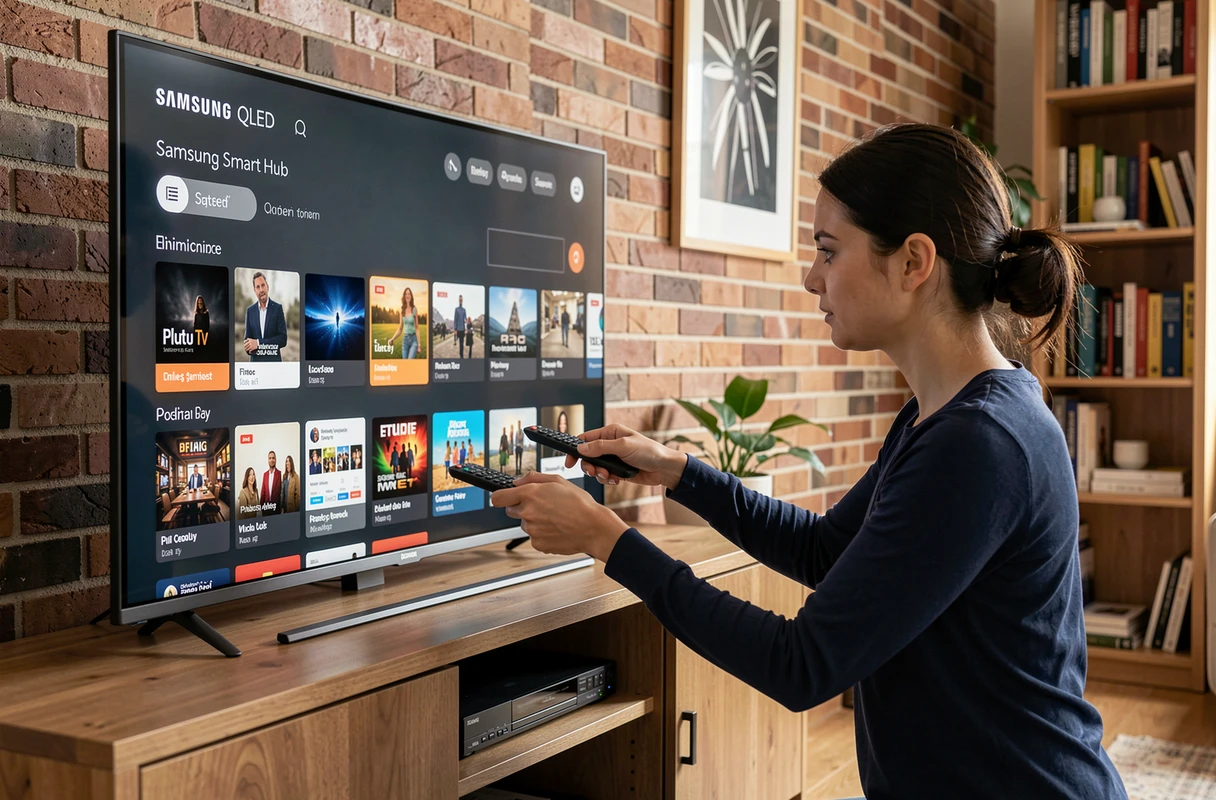
On a compatible television, the installation follows a direct path. From the home screen, you need to access the Apps section (sometimes called “Applications” depending on the system language). The built-in search bar allows you to type “Pluto TV.”
Once the app is displayed, select it and confirm the installation. The download takes a few seconds depending on the quality of the connection. The icon then appears on the home screen or in the list of installed applications.
Activation by code on pluto.tv/activate
Pluto TV does not require an account to watch free channels. However, creating an account allows you to save favorites and customize the experience. On some models, activation is done via a code displayed on the screen that the user then enters on pluto.tv/activate from a web browser or smartphone.
This code activation flow (sometimes accompanied by a QR code) is relatively recent. It replaces the cumbersome entry of credentials with the remote control, simplifying the connection on a television screen.
Pluto TV not found in the store: official alternatives and limitations of APKs
When the app does not appear in the Samsung Apps Store despite the checks, several options exist. None are perfect.
Change the TV’s region
Changing the country in the TV settings may unlock access to the app catalog of another region. This manipulation works in some cases, but it can also affect other location-related services, such as content recommendations or pre-installed apps. Feedback varies on the long-term stability of this solution.
Use an external device
Connecting an external streaming device (Chromecast, Amazon Fire TV Stick, or an Android TV box) to an HDMI port on the Samsung TV completely bypasses the Tizen compatibility issue. Pluto TV is available on the Google Play Store for Android TV, ensuring official access to the app via these devices.
This option adds hardware costs but offers the advantage of working regardless of the TV’s age.
The trap of third-party APK files
Sites like Aptoide or APKPure offer manually downloadable APK files of Pluto TV. On a Samsung TV running Tizen, installing an Android APK is not possible without going through developer mode, and even then, compatibility is not guaranteed. Tizen and Android are two distinct systems.
On an Android TV box, installing an APK from a third-party source remains technically feasible by enabling the “unknown sources” option. The available data does not allow for a conclusion on the reliability of these files compared to the official version from the Play Store. There is a risk of outdated or modified versions.
Reset Smart Hub and maintenance after installation on Samsung TV
The installation does not always end the story. Some users find that Pluto TV (or other apps) refuses to open after a TV update, or that the interface freezes on launch.
Samsung documents a maintenance procedure called Reset Smart Hub. Accessible from the TV settings (Support or Assistance section), this reset removes the data of installed applications and restores the Smart Hub to its original state. The applications must then be reinstalled, but launch issues disappear in most cases.
- Before a reset, note the manually installed applications to find them more easily after the procedure.
- The Smart Hub reset does not delete image settings or network settings from the TV.
- If the problem persists after the reset, a firmware update of the TV may be necessary via the system settings.
Pluto TV on a Samsung Smart TV works smoothly when the model, system, and region align. When one of these three elements is lacking, an external device remains the most reliable solution, without any tinkering or dubious APK files.